Onboard a New MikroTik
Follow these simple steps to enroll a router. The platform uses a secure, file-based configuration import that eliminates terminal paste-truncation issues and ensures a flawless setup.
Firewall Prerequisites (UDP 51820)
The MikroTik must be able to reach the platform on outbound UDP port 51820. If the site firewall blocks it, the tunnel handshake will fail silently, and the device will never appear online.
Download the Configuration File
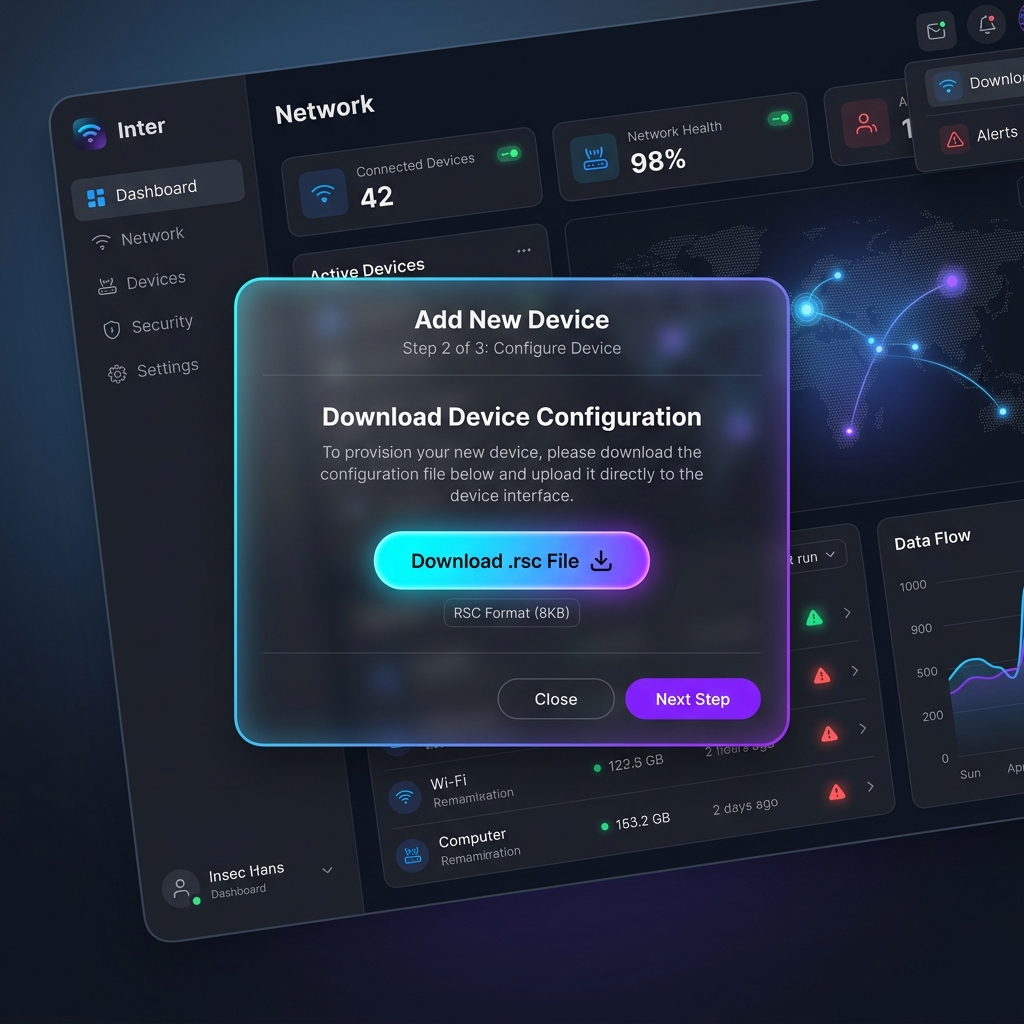
In the platform web interface, navigate to your Client > Devices tab and click the Add Device button.
Fill in the necessary device details and click Create & Generate Script. The platform will automatically generate and download an .rsc file tailored specifically for this device, complete with unique WireGuard keys.
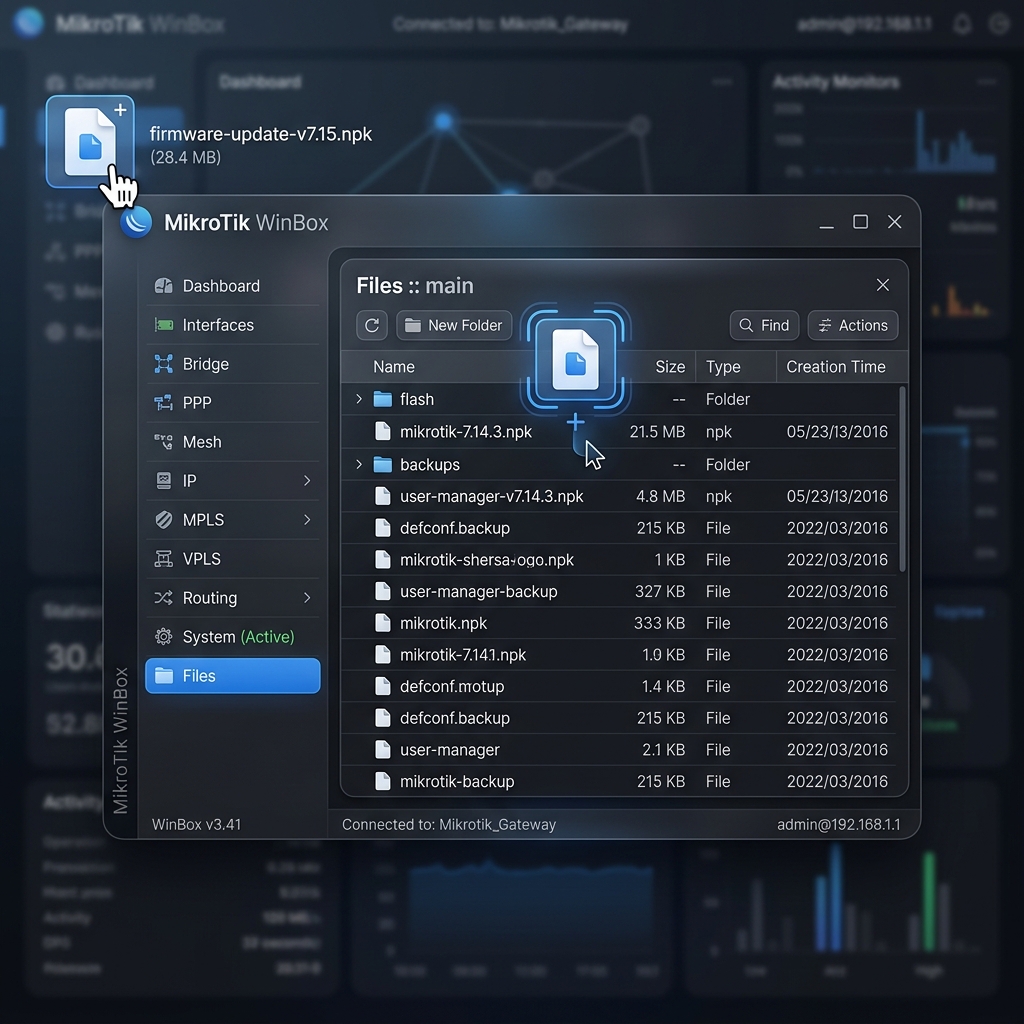
Run the Import Command
In WinBox, click New Terminal. Type the import command below to apply the configuration. Be sure to replace the filename with the exact name of the file you uploaded.
/import file-name=asg-enroll-YOUR_ID_HERE.rsc verbose=yes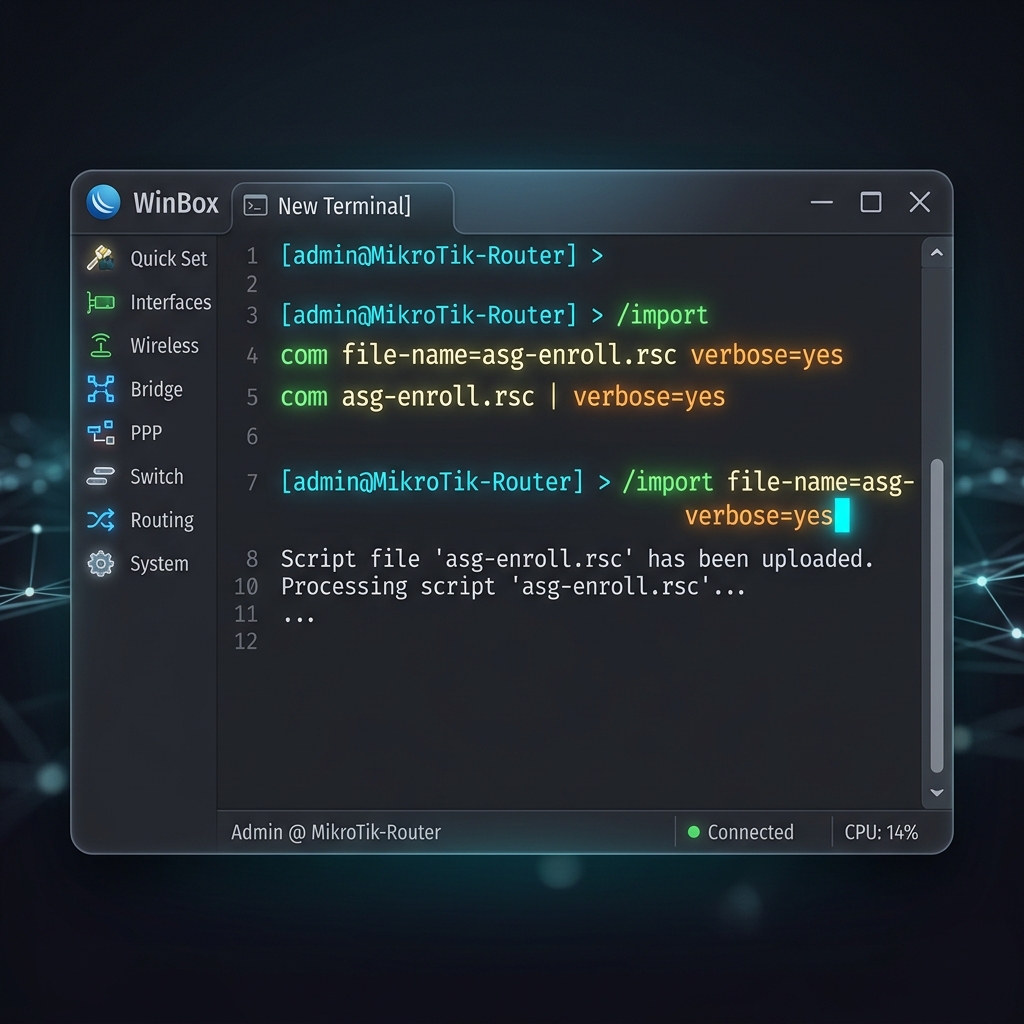
Security Architecture Notes
Privileges & Access
The 'mikrocloud' user is created with api, read, ssh, and rest-api access. Write privileges are only elevated dynamically during config pushes.
Encrypted at Rest
Device passwords are never stored in plaintext. They are encrypted using Fernet keys derived from a platform master key and tenant UUID salt.
NAT Traversal Built-in
The generated script automatically configures WireGuard with persistent-keepalive=25 to punch through site NAT firewalls flawlessly.
Single-Use Artifacts
Enrollment scripts contain unique, one-time WireGuard keys. Never reuse the same .rsc file on multiple devices or it will cause key collisions.